Terminology and Object Relationships Overview #
To describe the relationship between objects, we use the following terminology:
-
Source Object: The object from which the Contract Instance is created.
-
Related Object: The object that connects the Source Object to the Contract Instance.
-
Contract Instance: An instance of the contract.

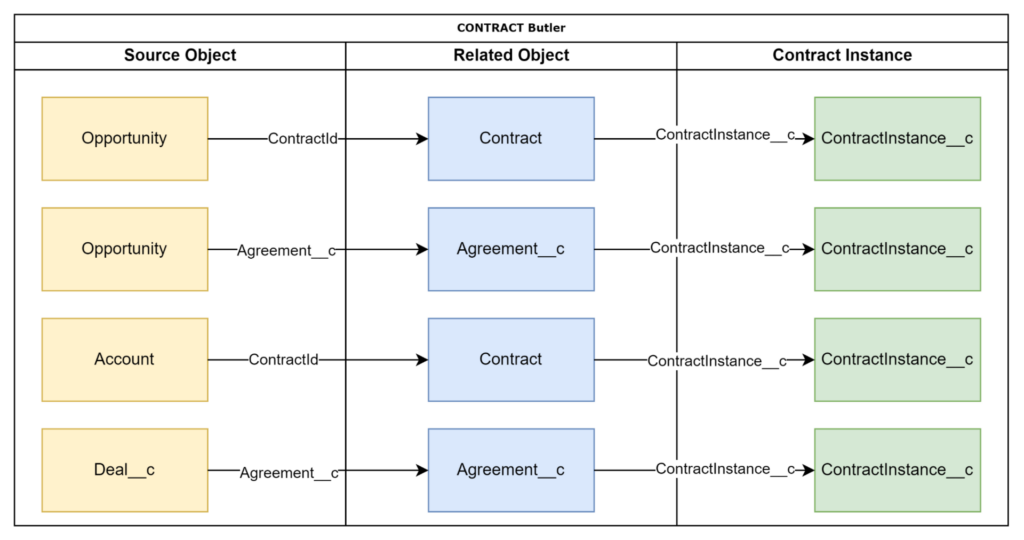
The Source and Related objects can be either standard or custom objects. The key requirement is that the Source Object contains a user-accessible lookup field for the Related Object, and the Related Object contains a lookup field for the Contract Instance.
As an example, we use standard Opportunity and Contract objects.
Configure Permission Sets #
Open Permission Sets Configuration #
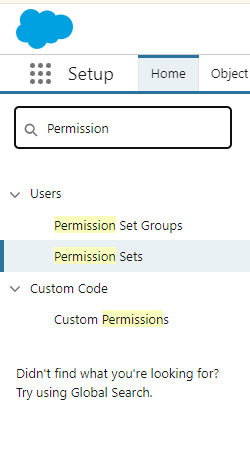
To begin the process, you’ll need to access the Permission Sets configuration in Salesforce. You can do this by logging into your Salesforce account and navigating to the Setup menu. In the Quick Find box, type “sets” to quickly locate the Permission Sets setup options.
Configuration path: Home ⟶ Quick Find (type in sets) ⟶ Under Users click Permission Sets:

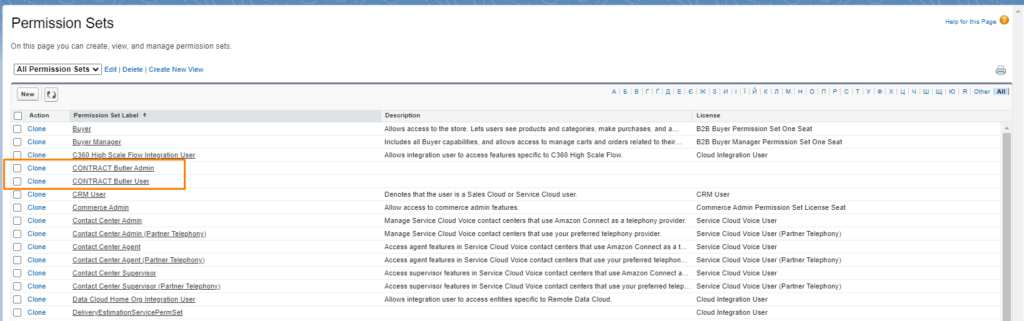
Clone CONTRACT Butler Admin and CONTRACT Butler User #
In the list of the permission sets, find out the CONTRACT Butler Admin and CONTRACT Butler User and clone them.
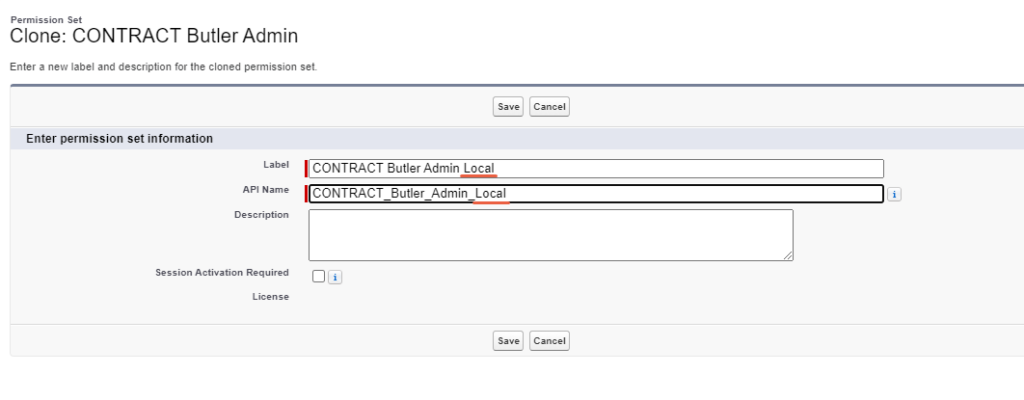
Clone the CONTRACT Butler Admin #
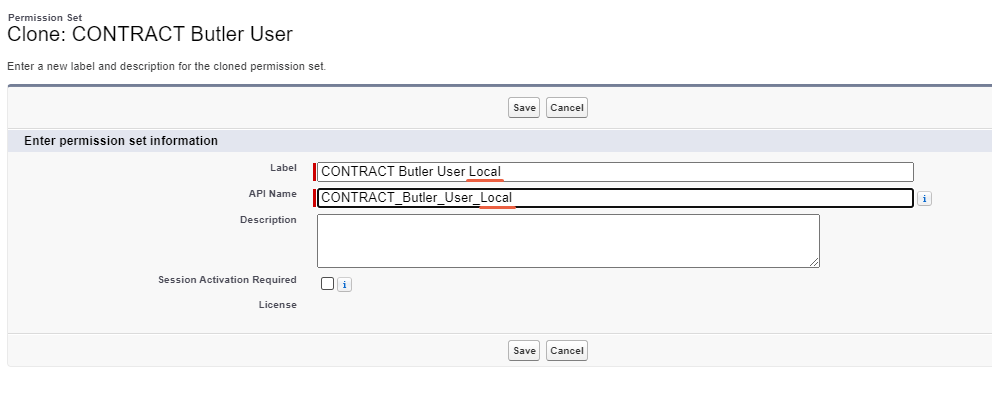
Change the Label and the API Name fields for new permission set. For example, you can add “Local” at the end and get: (CONTRACT Butler Admin Local)

Clone the CONTRACT Butler User
If necessary, perform the same actions for the User permission set.

Add access to the Related Object on both Admin and User Permission Sets #
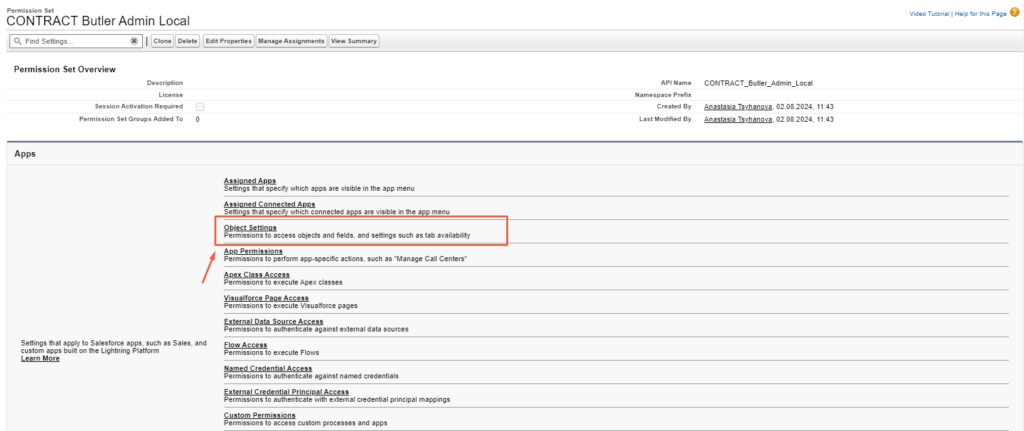
On your permission set that you just cloned (for example, CONTRACT Butler Admin / User Local), open Object Settings. To do this, click on the permission set, and it will direct you to the “Permission Set Overview” page. Then, you need to select “Object Settings”.

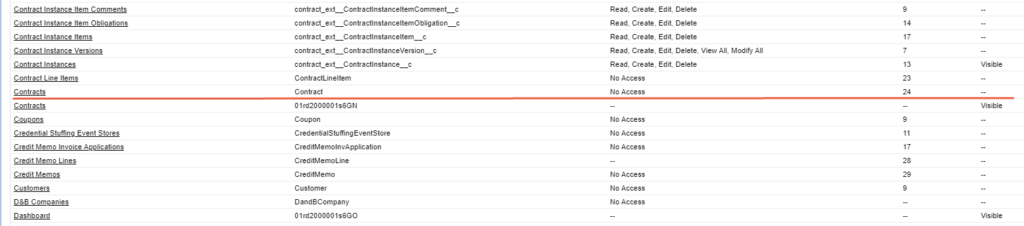
Then select your Related Record, for example – Contract. Any standard or custom object can be used based on your requirements.
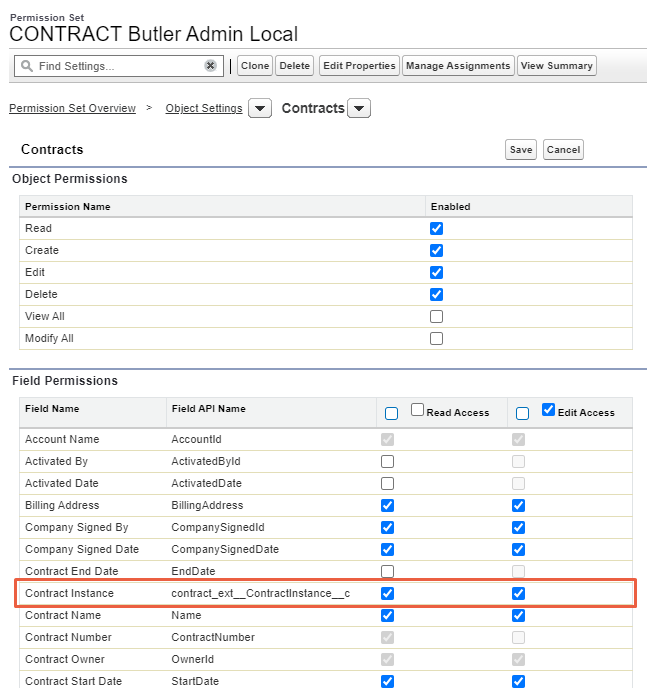
Add permissions like on the photo below:

Add access to the Source Object on both Admin and User Permission Sets #
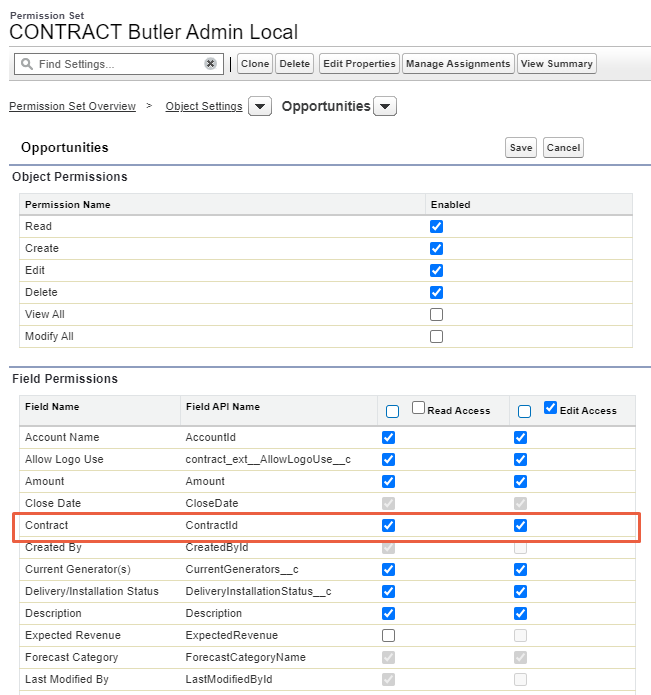
On the Object Settings page, you need to select the Source Object. For example, it could be – Opportunity. Any standard or custom object can be used based on your requirements.
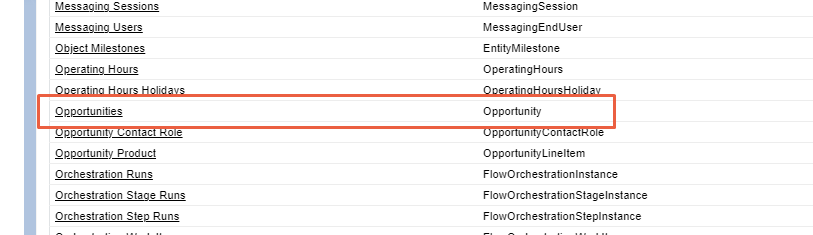

Add permissions like on the photo below:

Manage Permission Sets Assignment #
Open the permission set and press on “Manage Assignments”.
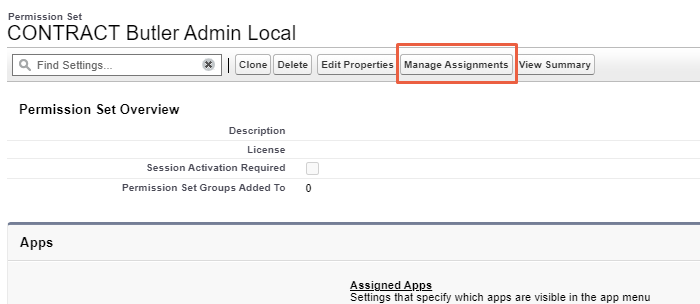

Then press on “Add Assignments” and choose users for assign. Click Next, click Assign.