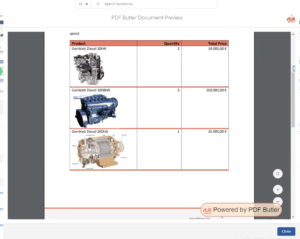
Use Dynamic Picture Data Sources to Load Images in Parallel #
Sometimes it is required to load a large amount of pictures. The special thing here is that the pictures are not loaded in Salesforce but directly in PDF Butler. This enables us to bypass certain Salesforce limits and to faster load these pictures when they come in large amounts (up to 300). PDF Butler will load the pictures in parallel to optimize the generation speed.
In this example, an Opportunity contains multiple Opportunity Products, and each product has an associated product image. During document generation, PDF Butler automatically retrieves each image and inserts it into the document.
Watch the video tutorial or review the related documentation to implement this feature.
Prerequisites #
Before starting, ensure that:
- A DocConfig already exists.
- Your document template already contains the required merge fields.
- Your products contain a field with the image URL.
- Your Opportunity Product Data Source is already configured.
Note: Dynamic Picture Data Sources are an add-on feature. The Add Dynamic Picture to Data Source button is only available if your organization has the required license.
How It Works #
Instead of embedding images directly inside Salesforce, PDF Butler retrieves each image from its URL during document generation.
Each image is linked to its parent record (for example, a Product) using its Salesforce Id, allowing PDF Butler to match the correct image to the correct record while generating the document.
Because the images are loaded in parallel, document generation remains fast even when many images are required.
Setting Up #
#
- Open your existing Data Source.
- Click the + button and select Add Dynamic Picture to Data Source.
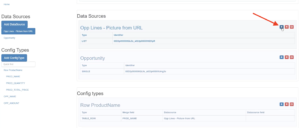
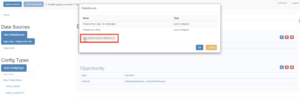
- Configure the following fields:
Name: Enter a descriptive name (for example,Product Pictures).
Id Field: Select the parent record Id (for example, the Product2Id). This tells PDF Butler which record each image belongs to.
URL Field: Select the field that contains the image URL.
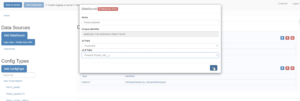
- Click OK to save the Dynamic Picture Data Source.
- Load your document in the PDF Butler Configuration Editor.
- Navigate to the repeating ConfigType that loops through the products (such as a Table Row or Repeater ConfigType).
- Create a new Picture ConfigType.
- Configure it as follows:
Name: Product Pictures
Type: PICTURES
DataSource: Product Pictures
Merge Field: Your image merge field (for example,PROD_PIC)
Scaling: By Height (Using Scale Ratio by Height automatically adjusts the image width while maintaining its original aspect ratio, ensuring every image is displayed correctly without distortion.)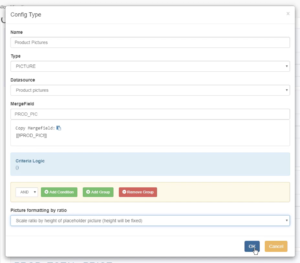
- Save the configuration.
- Generate the document from the Opportunity.