PDF Butler components provide a powerful way to generate documents and preview content directly from Salesforce. However, in many business scenarios, static component configurations are not flexible enough.
For example, you may want:
- Different Doc Configs based on Opportunity Stage
- Different Packs based on Record Type
- Different document alternatives depending on business rules
- Locale-specific document generation
- Dynamic Previewer configurations
Instead of creating multiple components with complex visibility rules, PDF Butler allows you to use Salesforce Flows to dynamically control which configurations are displayed.
This guide explains how to use an Auto-Launched Flow to dynamically configure PDF Butler Components and Previewers.
Create an Auto-Launched Flow #
The Flow used by PDF Butler must be an:
Auto-Launched Flow
This Flow will be responsible for:
- Receiving information about the current record.
- Determining which configurations should be available.
- Returning those values to PDF Butler.
Create the Input Variable #
PDF Butler passes information about the current record into the Flow.
To access this information, create a Flow variable.
- Create a New Resource
Resource Type: Variable
API Name:input
Important: The variable name should beinputusing a lowercase “i”. - Variable Configuration
Data Type: Apex-Defined
Apex Class:ComponentDataByFlowInput - Enable Input Access
Check:Available for Input
If this option is not enabled, the Flow will not receive any information from PDF Butler.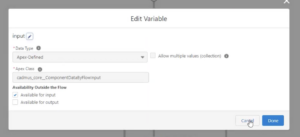
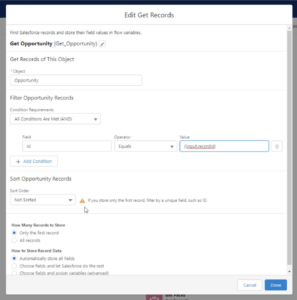
- Create a Get Record to Opportunity
Filter by ID: input.recordId
Create the Doc Config Output Variable #
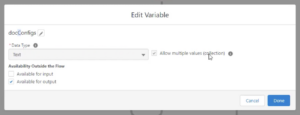
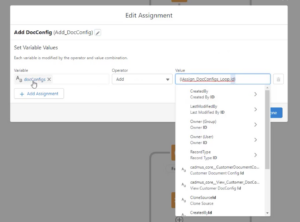
To return Doc Config IDs to PDF Butler, create a collection variable.
- Variable Name:
docConfigs
lowercase “d”
uppercase “C” - Data Type: Text
- Allow Multiple Values: Enabled
- Available for Output: Enabled
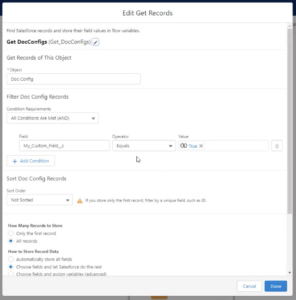
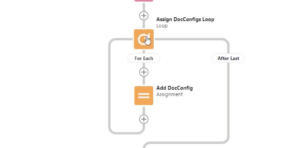
Create a Get Record to Doc Config Object and Loop it to all Doc Config
Configure Previewer Packs #
Previewers can also be controlled dynamically.
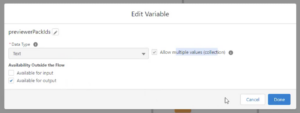
Create another collection variable.
- Variable Name:
previewerPackIds - Data Type: Text
- Allow Multiple Values: Enabled
- Available for Output: Enabled
Populate Previewer Packs #
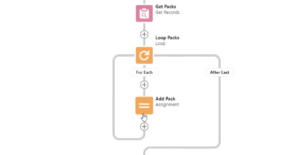
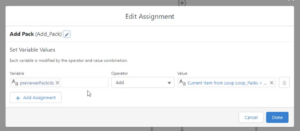
Retrieve Pack records and loop through them.
Add each Pack ID to the collection:previewerPackIds.ADD(Pack.Id)
PDF Butler will display those Packs in the Previewer component.
Configure Alternatives #
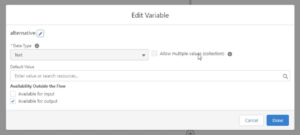
Alternatives can also be set dynamically.
- Variable Name:
alternative - Data Type: Text
- Collection: Disabled
- Available for Output: Enabled
Configure Locale #
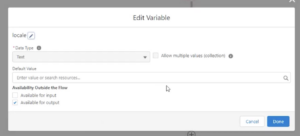
Locales can also be controlled by Flow.
- Variable Name:
locale - Data Type: Text
- Collection: Disabled
- Available for Output: Enabled
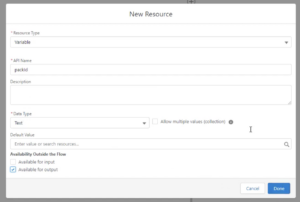
Configure a Single Pack #
In some situations, you may want to show a single Pack instead of a list of Doc Configs.
For this purpose, create another output variable.
- Variable Name:
packId - Data Type: Text
- Available for Output: Enabled
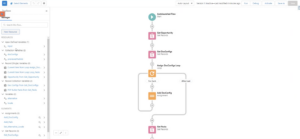
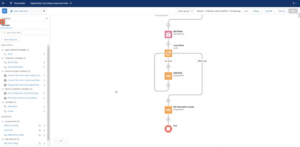
At the end your flow will be looking like similar to this one below:
Connecting the Flow to a PDF Butler Component #
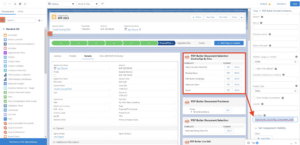
After building the Flow, connect it to the PDF Butler component.
- Open the Lightning Page
- Navigate to:
Edit Page - Select the PDF Butler component.
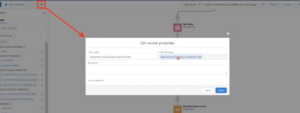
- Configure the Flow Name
fields such as: Doc Configs, Packs, Locales, Alternatives are left empty. - Only populate:
Flow Name
Populate the Flow Name with the Flow API Name
Using Flows with the Previewer Component #
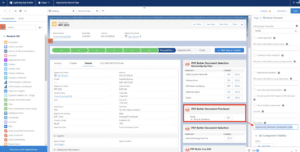
The same concept applies to the Previewer component.
Instead of configuring:
- Packs
- Doc Configs
- Alternatives
directly on the component, you can provide only a Flow Name.
The Flow then dynamically controls everything displayed in the Previewer.
By combining PDF Butler Components with Salesforce Auto-Launched Flows, administrators can dynamically control document generation and preview behavior without relying on static component configurations.
This approach provides maximum flexibility and allows document generation behavior to adapt dynamically to any Salesforce business process.