This article explains how to configure a static Salesforce Organization-Wide Address (OWA) while dynamically controlling the Reply-To email address using a PDF Butler Data Source.
This configuration is useful when emails should always be sent from a shared company address, but replies need to be routed to a different person, team, or external partner.
To support this use case, Sign Butler provides the ability to configure a dynamic Reply-To address using a Data Source.
Configuration Steps #
Step 1 – Create a PDF Butler Data Source #
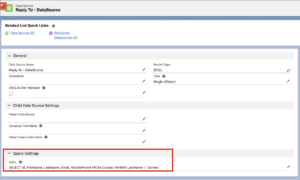
Create a Data Source that retrieves the record containing the desired Reply-To email address.
The Data Source can query:
- Accounts
- Contacts
- Opportunities
- Custom Objects
- Any supported Salesforce object
The implementation is completely flexible.
Within the Data Source, retrieve the field that contains the email address.
Example:Parent.Email or Email
The field does not need to exist directly on the queried object.
Lookup relationships can also be used!
Step 2 – Enable an Organization-Wide Address #
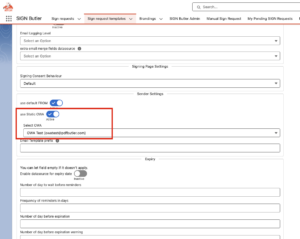
Navigate to your Sign Request Template and verify that Organization-Wide Address (OWA) is enabled.
This ensures that all outgoing emails are sent from the configured Organization-Wide Address.
Step 3 – Populate the Reply-To Configuration #
The Reply-To fields are currently not available in the standard Sign Request Template user interface. Therefore, they must be populated using Salesforce Inspector.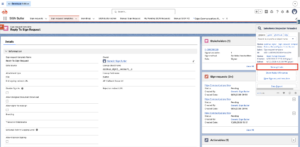
Using Salesforce Inspector #
- Open the Sign Request Template record.
- Launch Salesforce Inspector.
- Search for the following fields:
- Reply To Data Source
- Reply To Field
- Configure the Fields
Enter the ID of the PDF Butler Data Source that contains the email address to be used as the Reply-To address.
Enter the API name of the field that contains the email address.

- Save it
If the Reply To Data Source and Reply To Field fields are left blank, Sign Butler will continue to follow the standard email behavior.
In that scenario:
- The email is sent from the configured OWA.
- The Reply-To address will also be the OWA email address.
No behavior changes occur when these fields are empty.
Step 4 – Reviewing Results #
When Reply-To Is Not Configured:
- OWA is enabled
- Reply To Data Source is empty
- Reply To Field is empty
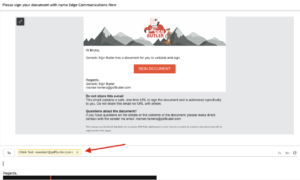
The recipient will see the OWA email address when clicking Reply.
#
When Reply To is Configured:
- OWA is enabled
- Reply To Data Source is populated
- Reply To Field is populated
The recipient will see the dynamically retrieved email address when clicking Reply.
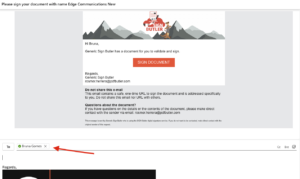
In this scenario, the email continues to be sent from the Organization-Wide Address, but all replies are directed to the email address returned by the configured Data Source.