Sign Butler now supports additional security methods that can be applied when recipients access documents for signing.
These security options provide an extra layer of protection for documents containing sensitive or confidential information.
In this guide, you’ll learn about the available security methods and how to configure them.
Available Security Options #
The following security settings are available for each signer:
- Default – No additional verification required
- Password – Requires the signer to enter a password before accessing the document
- SMS Verification – Requires the signer to verify their identity using a code sent via SMS
Each signer can have a different security method configured.
Password Security #
Password security requires the signer to enter a predefined password before viewing the document.
Configuration Steps #
- Navigate to Sign Request Templates.
- Create a new Sign Request Template.
- Complete the required information on the first page and click Next.
- On the Signer Configuration page, locate the Security Settings dropdown.
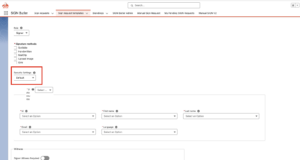
- Select Password.
- A new Password field will appear in the Data Source mapping section.
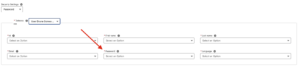
-
Select the Data Source field that will provide the password value.
– Any value from the Data Source can be used as password
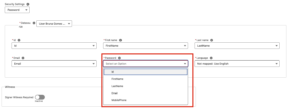
-
Add the Signer to the request.
- Send a document for signature.
Signer Experience #
- The signer opens the Sign Request.
- A Password Required screen is displayed.
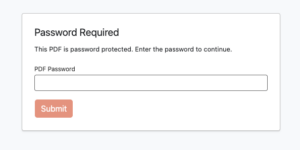
- The signer enters the password and click Submit.
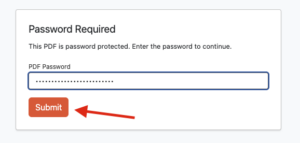
- After successful validation, the document becomes available for review and signing.
- If an incorrect password is entered, an Invalid Password message is displayed.
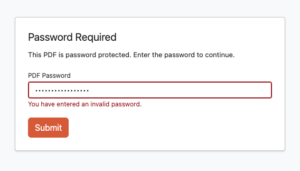
- After 3 consecutive failed attempts, the signer is temporarily blocked from further attempts for 10 minutes.
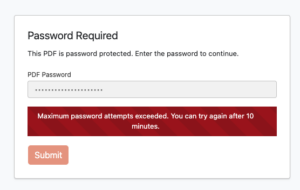
SMS Verification Security #
SMS verification requires the signer to enter a one-time verification code sent to their mobile phone.
Configuration Steps #
- Navigate to Sign Request Templates.
- Create a new Sign Request Template.
- Complete the required information on the first page and click Next.
- On the Signer Configuration page, locate the Security Settings dropdown.
- Select SMS.
- A new Mobile field will appear in the Data Source mapping section.
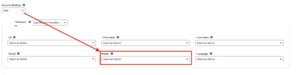
- Map the field containing the recipient’s mobile phone number.
- Save the template.
- Send a document for signature.
Signer Experience #
- The signer opens the Sign Request.
- A Verification Code Required screen is displayed.
- The last three digits of the configured phone number are shown for confirmation.
- The signer clicks Send Verification Code.
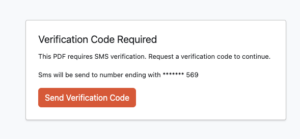
- A one-time verification code is sent via SMS.
- The signer enters the verification code.
- After successful validation, the document becomes available for review and signing.
- If an incorrect verification code is entered, an Invalid Verification Code message is displayed.
- After 3 consecutive failed attempts, the signer is temporarily blocked from further attempts for 10 minutes.
Default Security #
When Default is selected, no additional verification is required.
The signer can access the document directly through the Sign Request link and proceed with the signing process.
Configuration Steps #
- Navigate to Sign Request Templates.
- Create or edit a template.
- On the Signer Configuration page, leave Security Settings set to Default.
- Save the template.
No additional setup is required.
Combining Security Methods #
Different signers within the same Sign Request can use different security methods.
For example:
| Signer | Security Method |
|---|---|
| Signer 1 | Password |
| Signer 2 | SMS Verification |
| Signer 3 | Default |
This allows organizations to apply stronger verification only where necessary.
Configuration Steps #
- Navigate to Sign Request Templates.
- Create a new template.
- Configure two or more signer Data Sources.
- On the Signer Configuration page:
- Select the first signer Data Source.
- Choose the desired security method (Default, Password, or SMS).
- Add the signer.
- Repeat the process for all additional signers.
- Save the template.
Each signer will receive the same document but will experience the security verification configured specifically for them.
Examples:
- Signer 1 may be required to enter a password.
- Signer 2 may be required to verify via SMS.
- Signer 3 may access the document directly without additional verification.